Power Supply and Cooling Requirements for Modern Gaming PCs
Calculate PSU wattage for RTX 5090, RTX 5080 and Radeon RX 9070 XT. Learn PCIe 5.0 connectors, 80 PLUS efficiency classes, air vs liquid cooling and common mistakes.
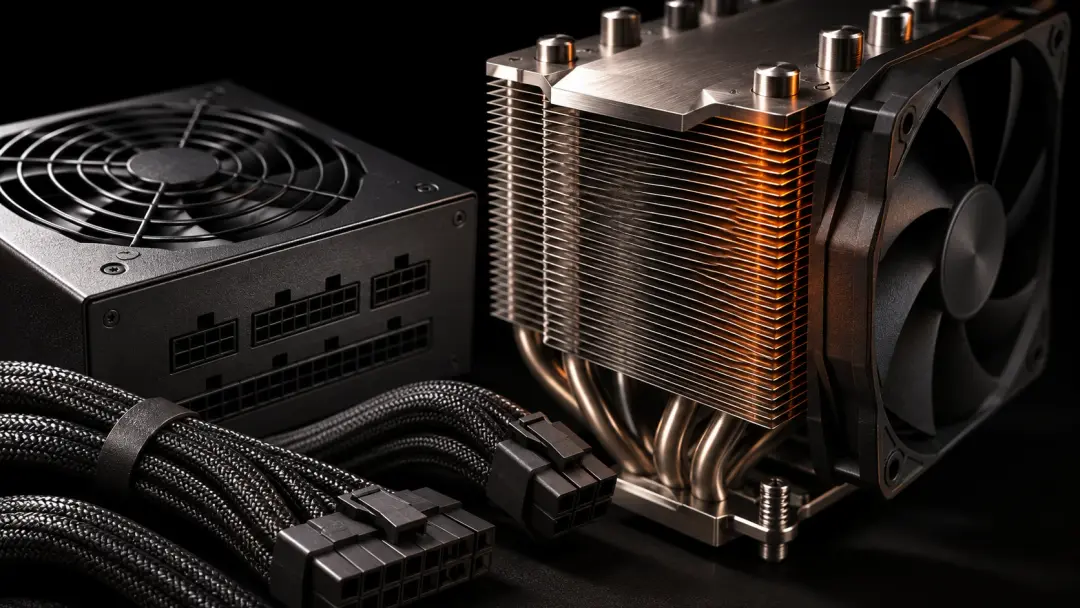
Modern graphics cards deliver unprecedented performance, but they also demand more power and generate more heat than ever before. Installing an RTX 5090, RTX 5080 or Radeon RX 9070 XT without adequate power supplies and cooling will lead to system instability, thermal throttling or outright failure. Choosing the right components ensures your gaming PC runs reliably under sustained load and protects your investment for years.
This guide walks through calculating PSU wattage, understanding connector standards, selecting cooling solutions and avoiding the most common mistakes when building or upgrading a high-performance system. Whether you are assembling your first gaming rig or upgrading an existing build, these fundamentals will help you match your hardware to your GPU's requirements.
Calculating PSU Wattage: TDP, Headroom and Real-World Load
Start by adding up the thermal design power (TDP) of your CPU and GPU, then add 100 to 200 watts of headroom for motherboard, storage, fans and transient power spikes. High-end GPUs can exceed their rated TDP during brief load peaks, and a PSU running near its limit operates less efficiently and noisily.
For an RTX 5090 build, plan for 850 to 1000 watts. NVIDIA rates the RTX 5090 at around 450 to 500 watts TDP, and pairing it with a modern high-core-count CPU (150 to 200 watts) leaves little margin in a 750-watt supply. An 850-watt or 1000-watt unit provides breathing room for overclocking, additional drives and future upgrades.
An RTX 5080 system typically runs well on a 750-watt PSU. The RTX 5080 draws approximately 300 to 350 watts, so a quality 750-watt supply leaves sufficient capacity for a mid-range CPU and peripherals. For the Radeon RX 9070 XT, a 750-watt PSU is also a safe baseline, though exact TDP varies by partner-card design.
Avoid the temptation to buy the minimum rated wattage. A PSU operating at 50 to 70 percent load runs cooler, quieter and more efficiently than one maxed out. Most quality units reach their peak efficiency around 50 percent load, which is where well-designed power supplies operate most economically.
PCIe 5.0 Connectors, 80 PLUS Efficiency Ratings and Modular Designs
Modern flagship GPUs use the PCIe 5.0 12VHPWR connector, a compact 16-pin interface that delivers up to 600 watts through a single cable. Older PSUs with only 8-pin PCIe connectors require adapters, but native 12VHPWR cables provide cleaner routing and eliminate potential points of failure. When shopping for power supplies, confirm the unit includes the appropriate cable for your GPU or buy a compatible adapter from a reputable manufacturer.
The 80 PLUS efficiency rating indicates that a PSU is specified for certain efficiency thresholds at 20, 50 and 100 percent load: units in the Bronze class are specified for about 82 percent efficiency at half load, Gold-class models for 87 percent and Platinum-class units for 90 percent. Higher efficiency means less wasted energy as heat, lower electricity bills and quieter fan operation. For a high-wattage build, the efficiency gain of Gold or Platinum can offset the upfront cost difference within a few years of daily use.
Modular PSUs let you connect only the cables you need, improving airflow and reducing clutter inside the case. Fully modular designs detach every cable, including the 24-pin motherboard connector; semi-modular units permanently attach essential cables and let you add or remove PCIe and peripheral connectors. Non-modular PSUs come with all cables hardwired, which works fine in spacious cases but complicates builds in compact enclosures. For a modern gaming build, semi-modular or fully modular is worth the small premium.
GPU Cooling: Reference vs Custom, Air vs Liquid
Graphics cards ship with either a reference-design cooler from NVIDIA or AMD, or a custom solution from partners such as ASUS, MSI or Gigabyte. Reference blowers exhaust heat directly out of the rear I/O bracket, useful in small cases with restricted airflow. Most partner cards use open-air coolers with two or three axial fans and large heatsinks, delivering lower temperatures and quieter operation in cases with good ventilation.
High-end models like the RTX 5090 and RTX 5080 generate substantial heat, and a three-fan custom cooler is standard. These designs spread heat across thick aluminum fin stacks and multiple heatpipes, keeping GPU temperatures below 75 to 80 degrees Celsius under sustained gaming load. Budget or compact cards may use smaller dual-fan coolers, which still work well if case airflow is adequate.
Liquid cooling a GPU via an all-in-one (AIO) bracket or custom loop offers the best thermal performance and near-silent operation, but it requires compatible hardware, careful installation and ongoing maintenance. AIO GPU coolers typically mount a 120 mm or 240 mm radiator in the front or top of the case. Custom loops integrate CPU and GPU blocks into a single loop with a larger radiator, but the complexity and cost make them niche solutions. For most gaming builds, a high-quality air-cooled GPU paired with good case airflow delivers excellent results without added complexity.
Case Airflow: Intake, Exhaust and Fan Placement
Effective cooling starts with balanced intake and exhaust. A typical setup places two or three 120 mm or 140 mm fans at the front or bottom of the case as intake, drawing cool air over the GPU and motherboard, and one or two fans at the rear or top as exhaust, expelling hot air. Positive pressure (slightly more intake than exhaust) reduces dust buildup by forcing air through filtered intakes, while negative pressure (more exhaust) can create stronger airflow but pulls unfiltered air through gaps.
Mount intake fans low and toward the front so cool air flows directly over the GPU. Most modern GPUs draw air upward through their heatsinks, so placing intake fans at the bottom or front of the case feeds them fresh air. Exhaust fans at the rear or top pull hot air away from the CPU cooler and out of the case. Avoid blocking airflow paths with cables or drive cages; use cable management channels and route cables behind the motherboard tray whenever possible.
Check physical clearances before buying components. A long GPU (320 mm or more on flagship cards) may interfere with front-mounted radiators or drive bays. Tall tower CPU coolers can block side-panel clearance or conflict with tall RAM modules. Measure available space in your case and compare it against the dimensions published by GPU and cooler manufacturers. Most modern mid-tower cases accommodate cards up to 350 mm and tower coolers up to 170 mm without issue, but compact or budget cases may have tighter limits.
Common Mistakes: Undersized PSUs, Poor Airflow and Ignoring Temperatures
Undersizing the PSU is the most frequent error. A system that boots and runs light tasks may crash or reboot under gaming load if the PSU cannot deliver peak wattage. Always calculate total system power draw with headroom rather than matching the bare minimum. Cheap, no-name power supplies often fail to deliver their rated output or lack proper protections, risking damage to other components. Stick to reputable brands with high efficiency ratings and multi-year warranties.
Neglecting case airflow leads to thermal throttling, where the GPU or CPU reduces clock speeds to avoid overheating. Symptoms include stuttering framerates, unexpected performance drops and high fan noise. Monitor temperatures with software such as MSI Afterburner or HWiNFO during gaming sessions. GPU temperatures above 85 degrees Celsius or CPU temperatures above 90 degrees under load indicate inadequate cooling. Adding intake fans, repositioning exhaust fans or upgrading the CPU cooler usually solves the problem.
Ignoring cable management worsens airflow and complicates future upgrades. Loose cables obstruct fan intakes and create turbulence inside the case. Route power and data cables behind the motherboard tray, use velcro straps or cable ties to bundle them neatly and leave the main chamber as open as possible. Good cable management not only improves cooling but also makes troubleshooting and component swaps faster and less frustrating.
Frequently Asked Questions
Do I need a 1000-watt PSU for an RTX 5090?
An 850-watt PSU is usually sufficient for an RTX 5090 with a modern CPU, but a 1000-watt unit provides extra headroom for overclocking, multiple storage drives and future upgrades. If you plan to push the GPU and CPU beyond stock settings, the larger supply is a safer choice.
Can I use an adapter to connect my new GPU to an old PSU?
Yes, if your PSU lacks a native 12VHPWR connector, you can use an 8-pin to 12VHPWR adapter. Make sure the adapter is rated for your GPU's power draw and comes from a reputable manufacturer. Native 12VHPWR cables are cleaner and more reliable, so consider upgrading the PSU if your current unit is several years old.
Is liquid cooling necessary for an RTX 5080?
No, a high-quality air-cooled RTX 5080 with a three-fan design runs comfortably below 80 degrees in a well-ventilated case. Liquid cooling offers lower temperatures and quieter operation but adds complexity and cost. Stick with air cooling unless you want the absolute best thermals or plan a custom loop for aesthetics.
How do I know if my case has enough airflow?
Monitor GPU and CPU temperatures during gaming with software such as HWiNFO or MSI Afterburner. If the GPU stays below 80 degrees and the CPU below 85 degrees under sustained load, airflow is adequate. Temperatures above those thresholds suggest adding intake or exhaust fans, improving cable management or repositioning existing fans.